Setting up your development environment
Before setting up a Unity Project with MRTK3, make sure you have the following software tools installed.
| Software | Version | Notes |
|---|---|---|
| Unity | 2022.3 LTS or newer | Recommend using an LTS release See Additional tools below for recommended modules |
Additional tools
Older versions of MRTK3 can be found on the Mixed Reality Feature Tool for Unity. The feed that backs the tool and the publishing infrastructure around it have been decommissioned, and new versions will not be published here.
Android
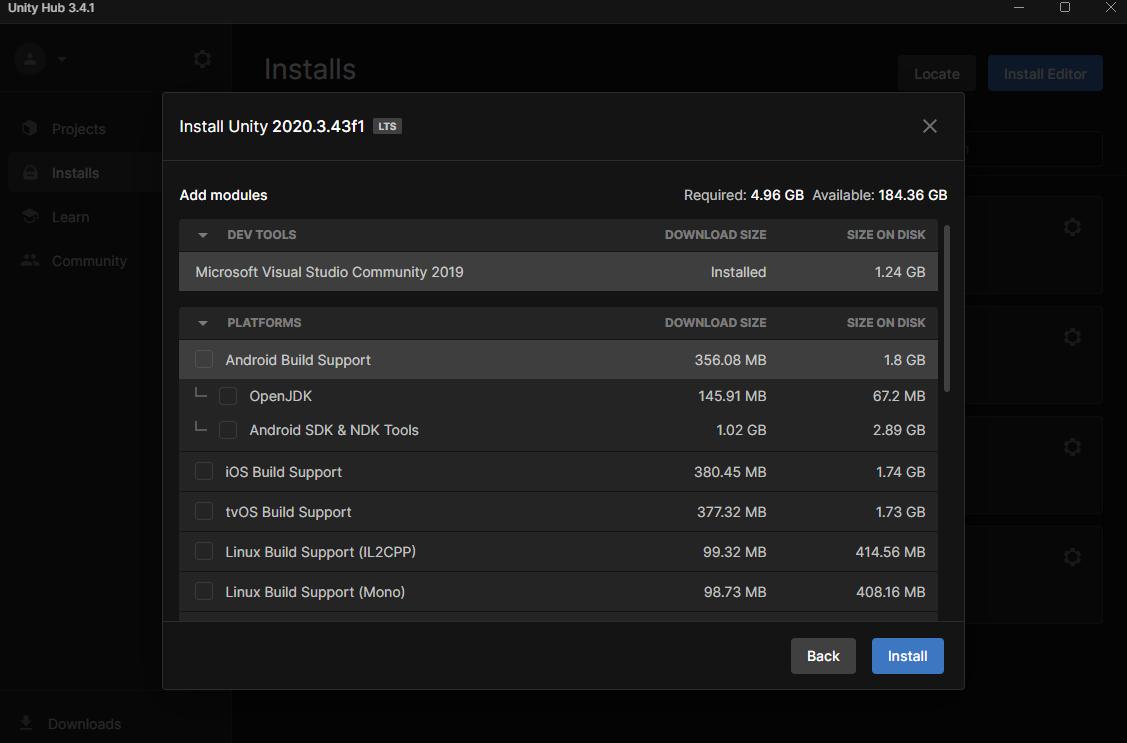
If your target platform is an AOSP-based device, like Android XR or Quest, your Unity installation needs to include the Android Build Support module and its submodules.
HoloLens 2
| Software | Version | Notes |
|---|---|---|
| Microsoft Visual Studio | 2022 Community or newer | Add the required workloads as noted in the Installation Checklist |
| Windows 10 SDK | 10.0.18362.0 or later |
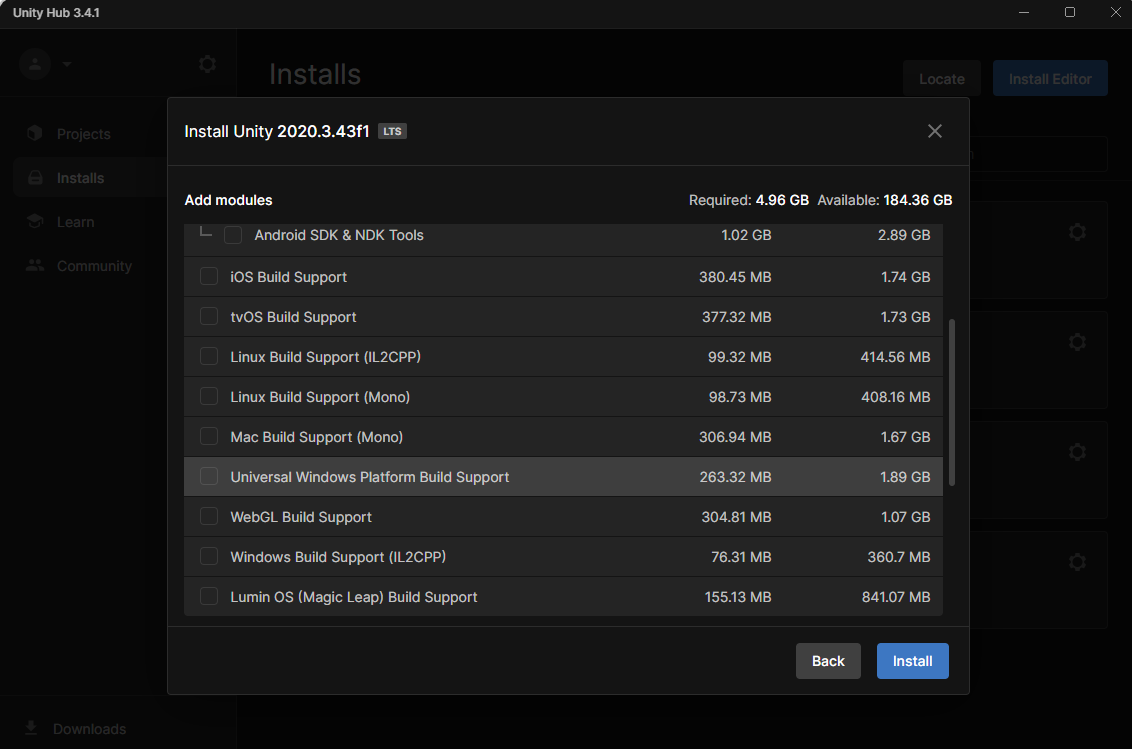
If your target platform is a HoloLens device, your Unity installation needs to include the Universal Windows Platform Support module.
Next steps
After setting up the development environment, there are few options for creating a Unity Project with MRTK3.
- Starting from the template project: This guide walks you through cloning a template project, which is pre-configured to consume all MRTK3 packages. This template project is set up with Unity project settings for running your application on a device.
- Starting from a new project: This guide walks you through adding vital MRTK3 packages to a new Unity project. The guide also helps you set up the Unity project settings for running your application on a device.