Deploy to an Android XR device
This page describes how to deploy your Unity Project with MRTK3 onto an Android XR device.
For general Android XR and Unity information, see the Android XR developer docs.
Deployment Prerequisites
-
Add MRTK to your project and ensure your project settings are configured correctly to use the OpenXR pipeline and MRTK’s feature set. These features are required to deploy your project onto your Android XR device.
If starting from the template project, these project settings should already be configured for you.
-
Navigate to File > Build Settings.
-
Under Platform, select Android. Switch the platform to Android, and wait for the operation to finish.
-
Navigate to Edit > Project Settings.
-
Under Project Settings, navigate to XR Plug-in Management and enable OpenXR under the Android tab. Ensure that Initialize XR on Startup is selected and that no feature groups are enabled, and wait for the operation to finish.
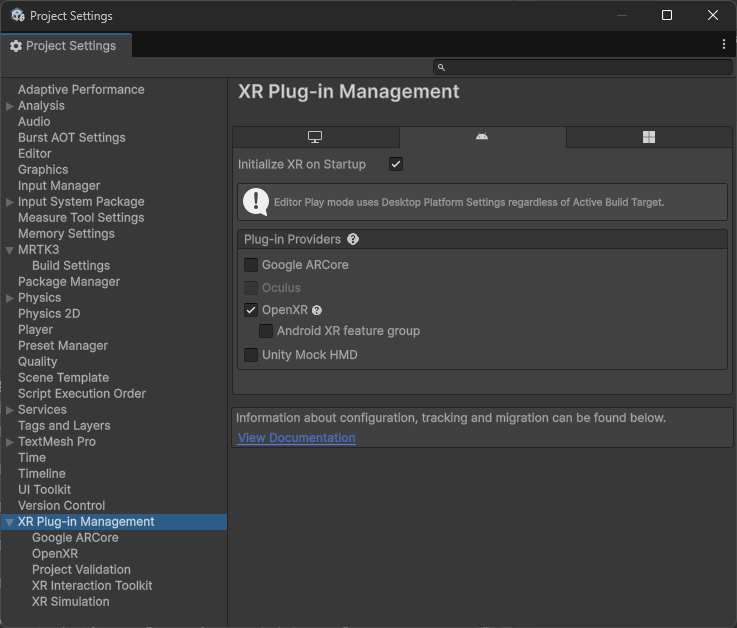
A yellow warning icon may appear after checking the OpenXR option. Click that icon to open the OpenXR Project Validation tool. Click Fix All and ignore the interaction profile issue that can’t be auto-fixed. The profiles will be added in the step below.
-
Under Project Settings, navigate to XR Plug-in Management > OpenXR > Interaction Profiles and ensure the following profiles are listed based on the MRTK features you’d like to use:
Profile MRTK Hand Interaction Profile For articulated hand input Oculus Touch Controller Profile For controller input -
Under Project Settings, navigate to XR Plug-in Management > OpenXR > OpenXR Feature Groups and ensure the following features are checked under All Features based on the MRTK features you’d like to use:
Feature MRTK Android XR: AR Session
Android XR: Hand Mesh DataFor rendering the system hand mesh Hand Tracking Subsystem For rendering the articulated hand joints 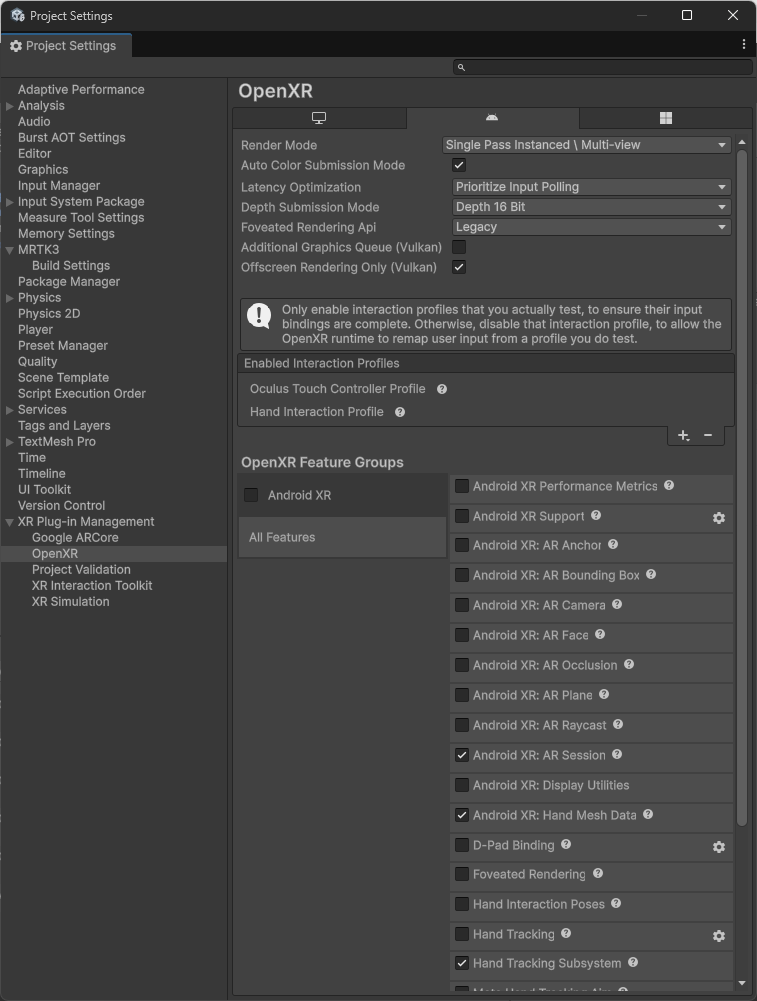
You can enable additional features as needed, but in-scene support for them will come from other packages, like AR Foundation.
-
A yellow warning icon or red error icon may appear during this process. Click that icon to open the OpenXR Project Validation tool. Select Fix All to address the issues. There may be several items to address.
Deploying to Device
- After you have the project configured, proceed to build and run the Unity Project.